In this blog I am going to discuss some of the tools that ACS Commons provide which are helpful in the course of development as well as provide easy to use functionalities.



1) AEM Environment Indicator
During the course of deployment to any environment we usually open multiple environments on the browser and make changes to different environments. Since there is less turn around time for fixing during deployment , it usually results in humane error.
Example : If we are deploying to preprod environment we usually have stage and local environment open in the browser and might copy values from stage to preprod by mistake.
ACS Commons provide an utility through which we can mark different environment with their name. This will reduce the confusion of on which environment we are working.
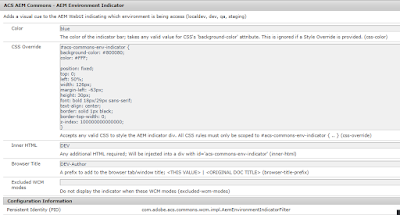
In order to enable it , go to /system/console/configMgr and search AEM Environment Indicator.

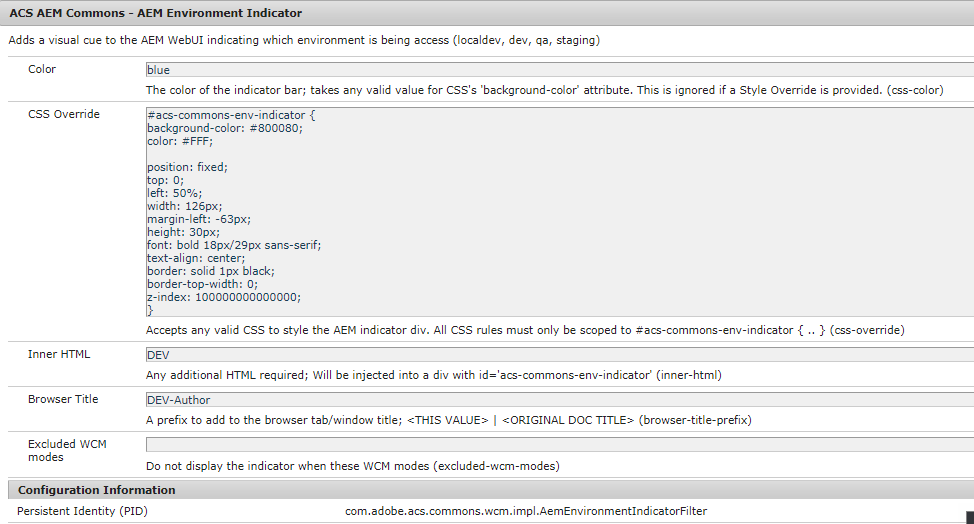
Enter the below values in order to enable the Indicator for the environment.
Properties :
1) Color : Marks the color of the indicator.Takes any valid css bg color value.
2) CSS Override : Css to style the indicator div. All css should be applied to #acs-commons-env-indicator.
Note :- z index value should have a higher value.
3) Inner HTML : Valid html or text for name of the indicator
4) Browser Title : Prefix for the browser title
5) Excluded WCM Modes : Mutli value property for excluding wcm modes.
After configuring properties, click on OK. You'll be able to see the indicator on your environment.

We can specify the name of different environments by putting the OSGI config com.adobe.acs.commons.wcm.impl.AemEnvironmentIndicatorFilter in the run modes.
2) ACS Named Image Transform Servlet
Acs commons provide image transformations via OSGI configuration through invoking a parameterized GET request. This can be used to generate renditions of the image on run time , thereby putting less storage on the DAM.
In order to utilize it go to /system/console/configMgr and search ACS AEM Commons-Named Image Transformer Factory

There are two properties that are required:
1) Transform Name : Name of the transform through which we want to apply the image transformations.
Example: We can define the name of the renditions and provide the image transform for it.
2) Image Transformers : Multivalue property where we can specify different tranformations that can be applied to the image.
Example: In the above example, I have used resize property with width and height.
To check the transformation of the image , open a particular image and add below to its source url.
.tranform/name-of-transform/image.png
Example : http://localhost:4502/content/dam/we-retail/en/activities/climbing/climber-gear-indoor.jpg.transform/380*460/image.png
This will result in an image with width as 380 and height as 460.
If we apply multiple transforms differently , the transformations will be applied in the same order. Example a resize and crop can yield result differently than crop and resize.
There are multiple other transformations that can be applied to the image. For further details :
Use the PID com.adobe.acs.commons.images.impl.NamedImageTransformerImpl for different run modes.
If you want to check what all resource types are supported or modify the existing. Search NamedImageTransformServlet in /system/console/configMgr

Use the PID com.adobe.acs.commons.images.impl.NamedTransformImageServlet for different run modes.